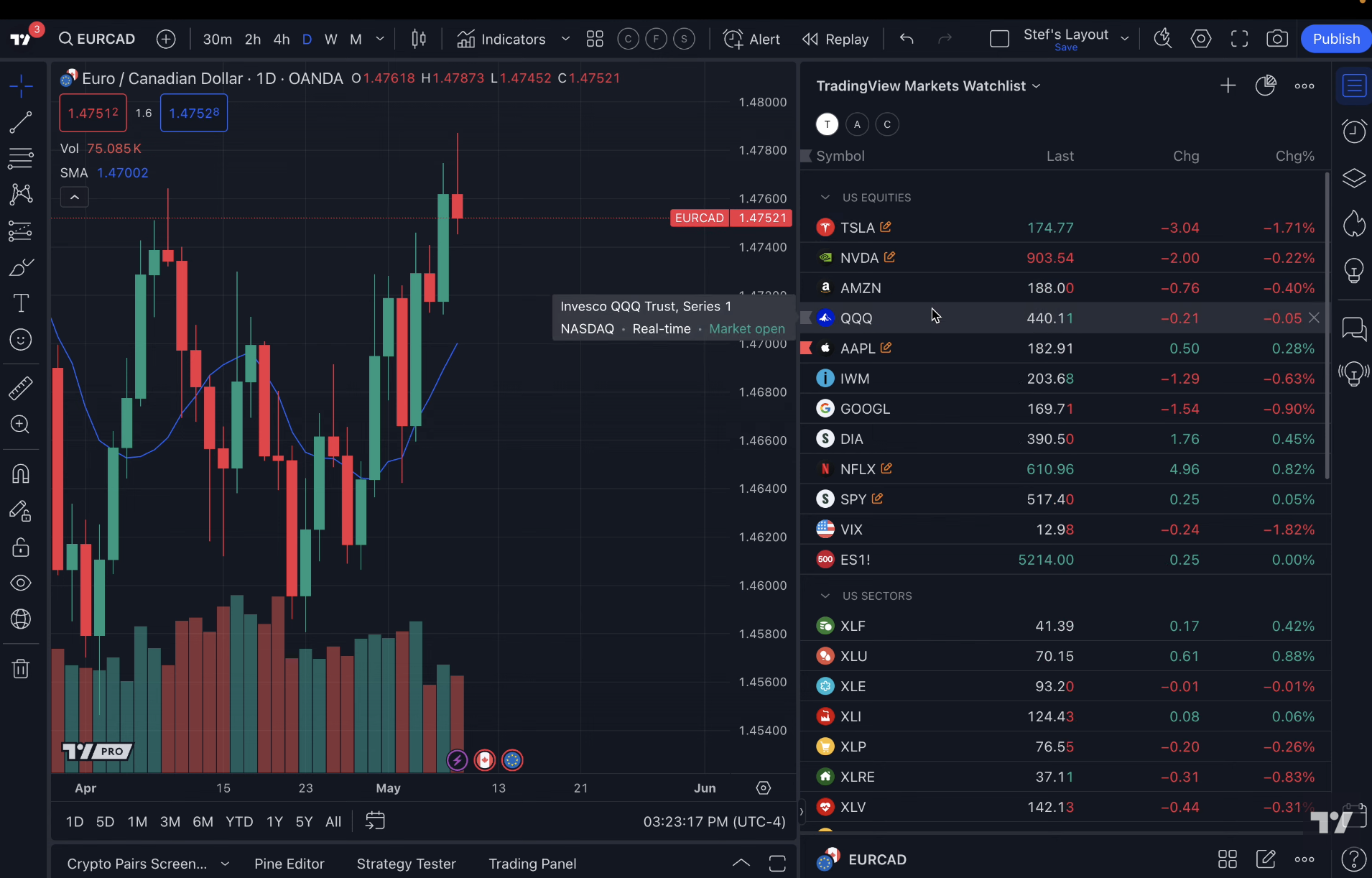
Tradingview

The Ultimate Guide to TradingView Alerts: Never Miss a Trade Again

If there’s one feature that separates casual chart watchers from consistent traders, it’s alerts.

Alerts let the market come to you instead of you chasing it.
And while TradingView’s free plan gives you just one alert, the Pro and Pro+ plans unlock the tools that serious traders rely on every day.

If you want to test the same premium alert features I use, start here:

Try TradingView Pro

Why Alerts Are a Game-Changer

Imagine this scenario:
You’re busy with work, errands, or family.
A trade setup happens exactly as planned.
With alerts, you get notified instantly — you don’t have to sit glued to the screen.

The right alerts:

  • Save time

  • Reduce stress

  • Improve consistency

  • Prevent emotional or impulsive trades

Paid TradingView plans let you set multiple alerts, customize conditions, and even trigger actions automatically.

Step 1: Choosing the Right Alert Type

TradingView offers several types of alerts on paid plans:

  1. Price Level Alerts

    • Triggered when price reaches a specified level

    • Ideal for support/resistance entries

  2. Indicator Alerts

    • Triggered when an indicator condition occurs (e.g., EMA cross, RSI oversold)

    • Saves you from constantly monitoring charts

  3. Drawing Object Alerts

    • Triggered when price touches a trendline, channel, or horizontal line

    • Lets you combine technical analysis with notifications

  4. Webhook Alerts

    • Send a signal to another app or bot

    • Perfect if you use trading automation or journaling systems

Paid plans let you combine multiple conditions, which can’t be done on the free plan.
Step 2: Best Practices for Setting Alerts

Alerts are only useful if they’re actionable:

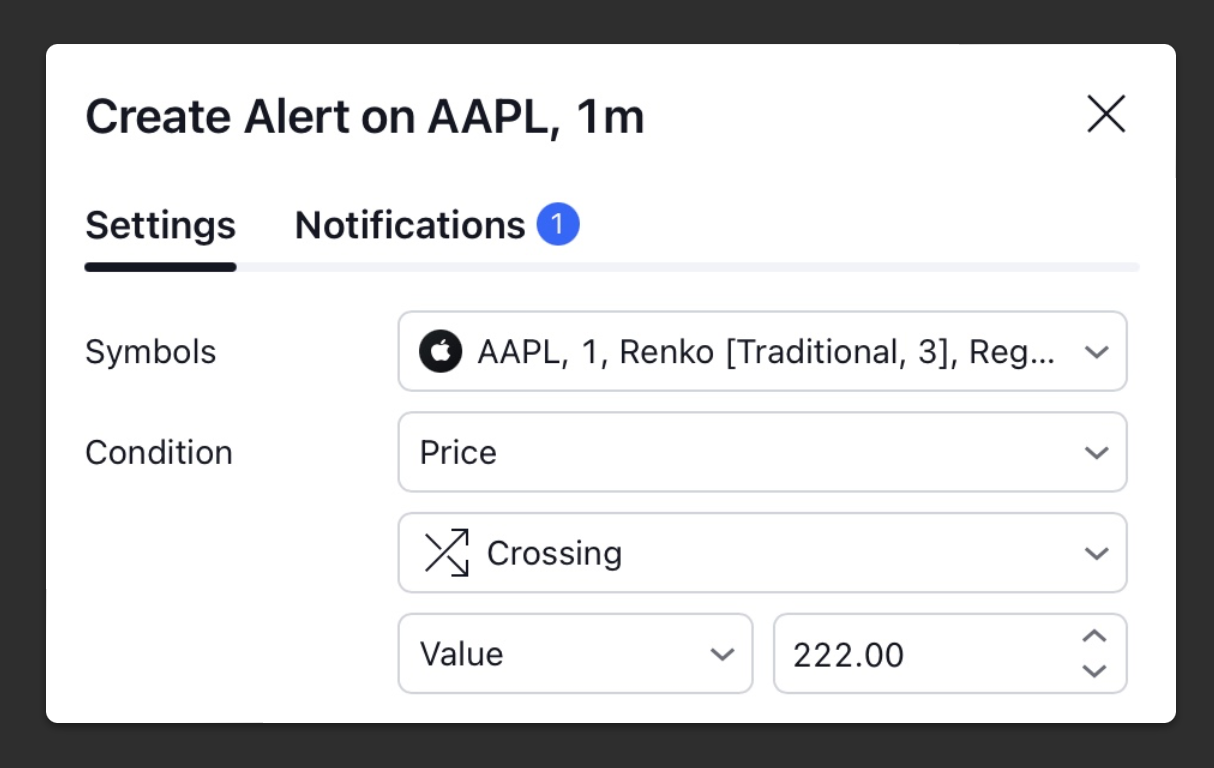
  • Keep them specific – “Notify me if price crosses 1.1200” is better than “Notify me if price moves.”

  • Use sound notifications or push alerts – email alone can be missed.

  • Limit the number of alerts – too many, and you’ll ignore them all.

  • Test them first – a small practice alert ensures they trigger correctly.

Step 3: Alert Strategies That Work

Here are a few strategies I personally rely on:

1. Pullback Entry Alerts

  • Set an alert at a high-volume node or EMA

  • Enter when price reacts to the level

2. Breakout Alerts

  • Monitor consolidation zones

  • Trigger an alert when price breaks out, not before

3. Multi-Indicator Confirmation

  • Combine price crossing EMA + RSI threshold

  • Only alert when both conditions are met

  • Helps avoid false signals

4. End-of-Day Summary Alerts

  • Notify you if a stock/crypto closes above or below a certain zone

  • Helps plan next-day trades efficiently

All of these require at least the Pro plan, which is why upgrading isn’t just convenient — it’s essential for a professional workflow.

Step 4: Staying Organized With Alerts

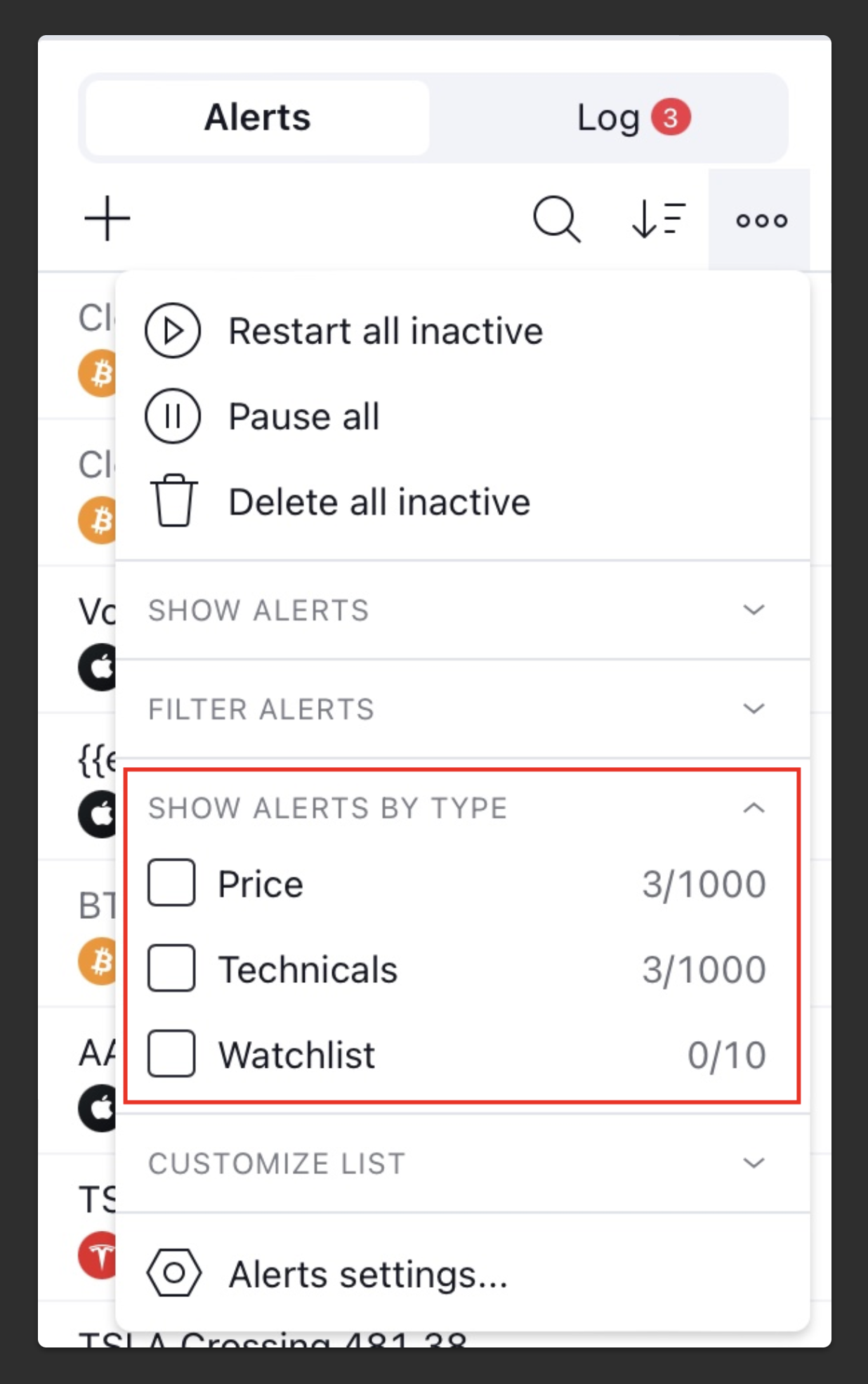
Paid plans let you manage multiple alerts simultaneously.
Here’s how I keep them tidy:

  • Group alerts by strategy or timeframe

  • Label alerts with clear names (“BTC breakout,” “ES pullback”)

  • Delete old or irrelevant alerts daily

This ensures you never miss a signal because of clutter.

Step 5: Testing & Adjusting Alerts

No alert system is perfect out of the box.

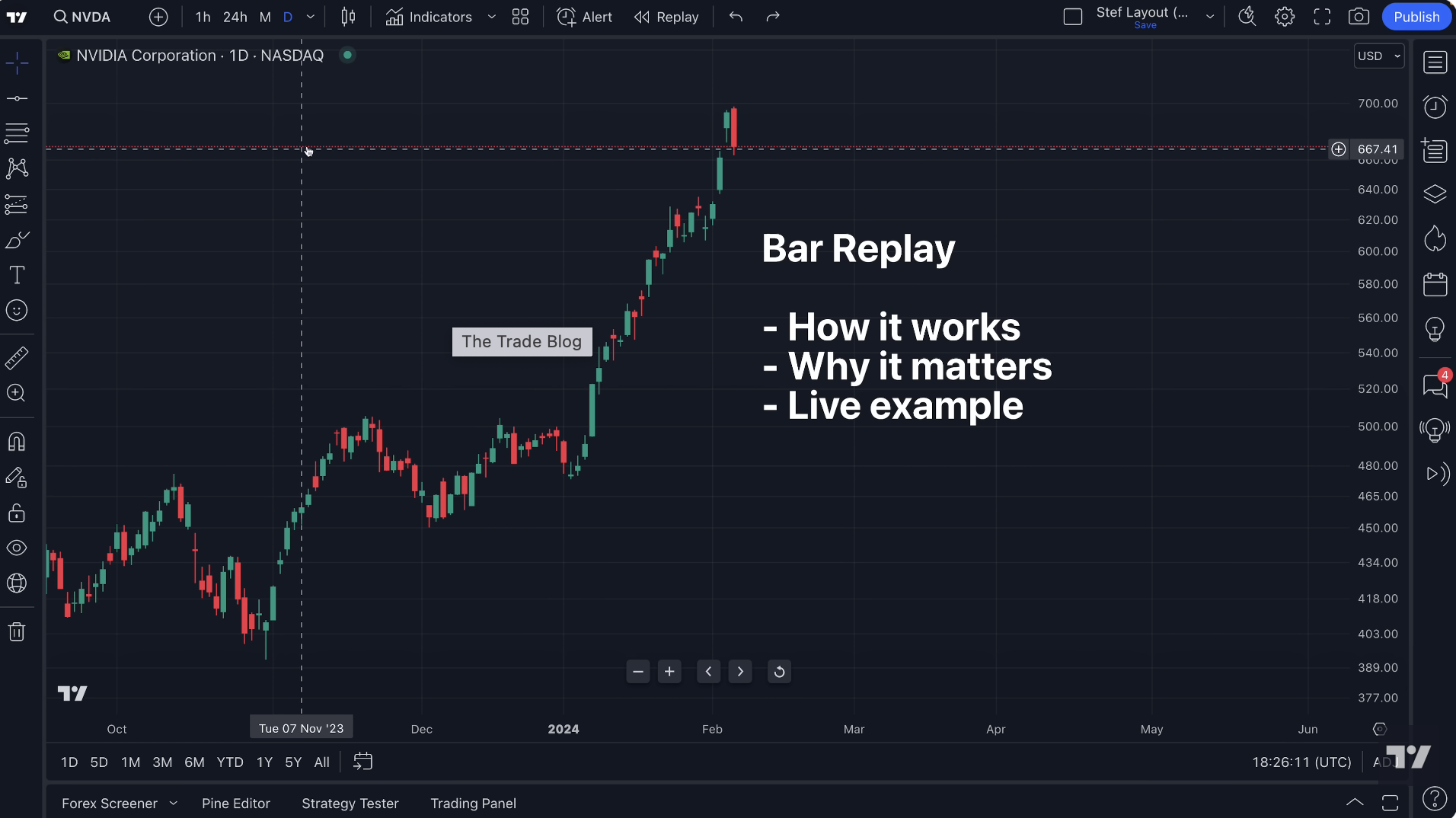
  • Backtest alert conditions with Bar Replay

  • Adjust triggers based on market behavior

  • Only keep alerts that consistently lead to actionable trades

This process transforms TradingView alerts from a “nice feature” into a trading edge.

Why Upgrading Is Worth It

  • Free plan: 1 alert → not enough for serious traders

  • Pro/Pro+: 10–30 alerts, multi-condition setups, indicator alerts

  • Premium: 400 alerts, webhooks, 8 charts per layout

The ability to catch more trades without babysitting charts is why most traders upgrade.
It’s the single feature that pays for itself if used consistently.

Start Using Alerts Like a Pro

If you want to unlock these features and set up your alert workflow the way I do, here’s the link I started with:

Try TradingView Pro

Start catching trades without missing a beat.
The Beginner’s Blueprint: Setting Up TradingView From Scratch (Paid Features That Actually Help You Trade)

If you’re new to TradingView, the sheer number of options can feel overwhelming.
Charts, indicators, drawing tools, alerts, layouts — it’s easy to get lost.

This guide isn’t about showing you every single button.
It’s about getting your premium setup running fast, using the features that actually make a difference for real trading, and avoiding free tools that won’t generate results or help your trading workflow.

If you want to start with the setup I use (and includes the premium tools), here’s the link:

Try TradingView Pro

Step 1: Choose the Right Plan

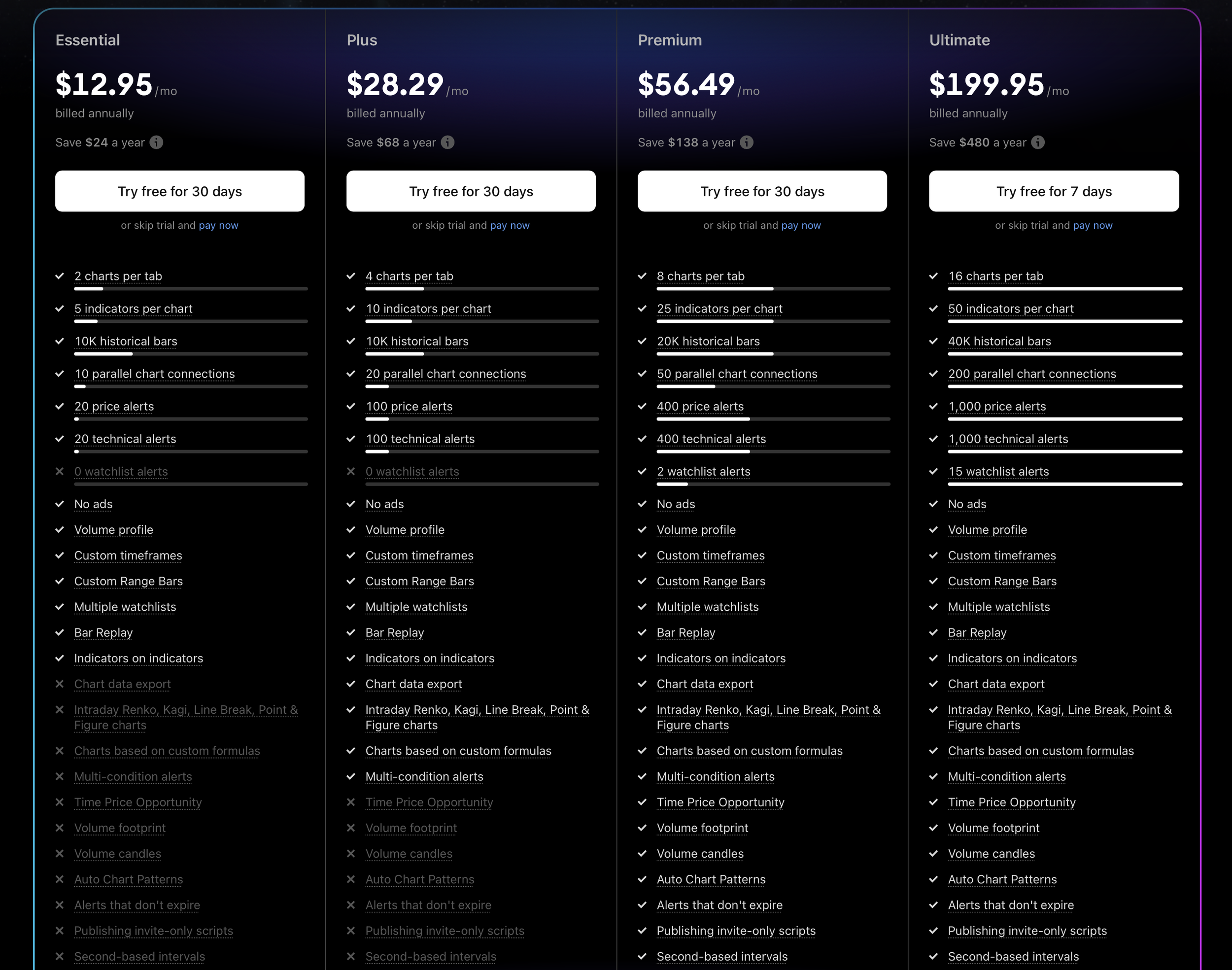
TradingView offers multiple plans:

  • Essential – Basic charts, limited indicators, 20 alerts.

  • Plus – 4 charts per layout, 100 alerts, extra indicators.

  • Premium – 8 charts per layout, 400 alerts, intraday indicators.

  • Ultimate – All features unlocked, 16 charts per layout, 1,000 alerts, priority support.

For a beginner who wants real trading results, Pro or Pro+ gives the best balance:

  • Multiple alerts so you don’t miss trades

  • More indicators to analyze structure

  • Ability to use bar replay for practice

Free works for testing, but you won’t experience the workflow that actually helps you make better trades — and that’s what converts.

Step 2: Set Up Your Chart Layout

Your workspace should reduce decision fatigue. Here’s what I recommend:

  • Primary chart: 5-minute (for intraday setups)

  • Secondary chart: 15-minute or 1-hour (to check trend)

  • Optional chart: Daily or weekly (for context)

TradingView lets you save layouts and access them anywhere — a paid feature that makes consistency easy.

Tip: Give each layout a clear name (e.g., “Day Trading Setup”) so switching is simple.

Step 3: Add Essential Paid Indicators

Beginner traders often overload charts with free indicators that don’t help. Focus on:

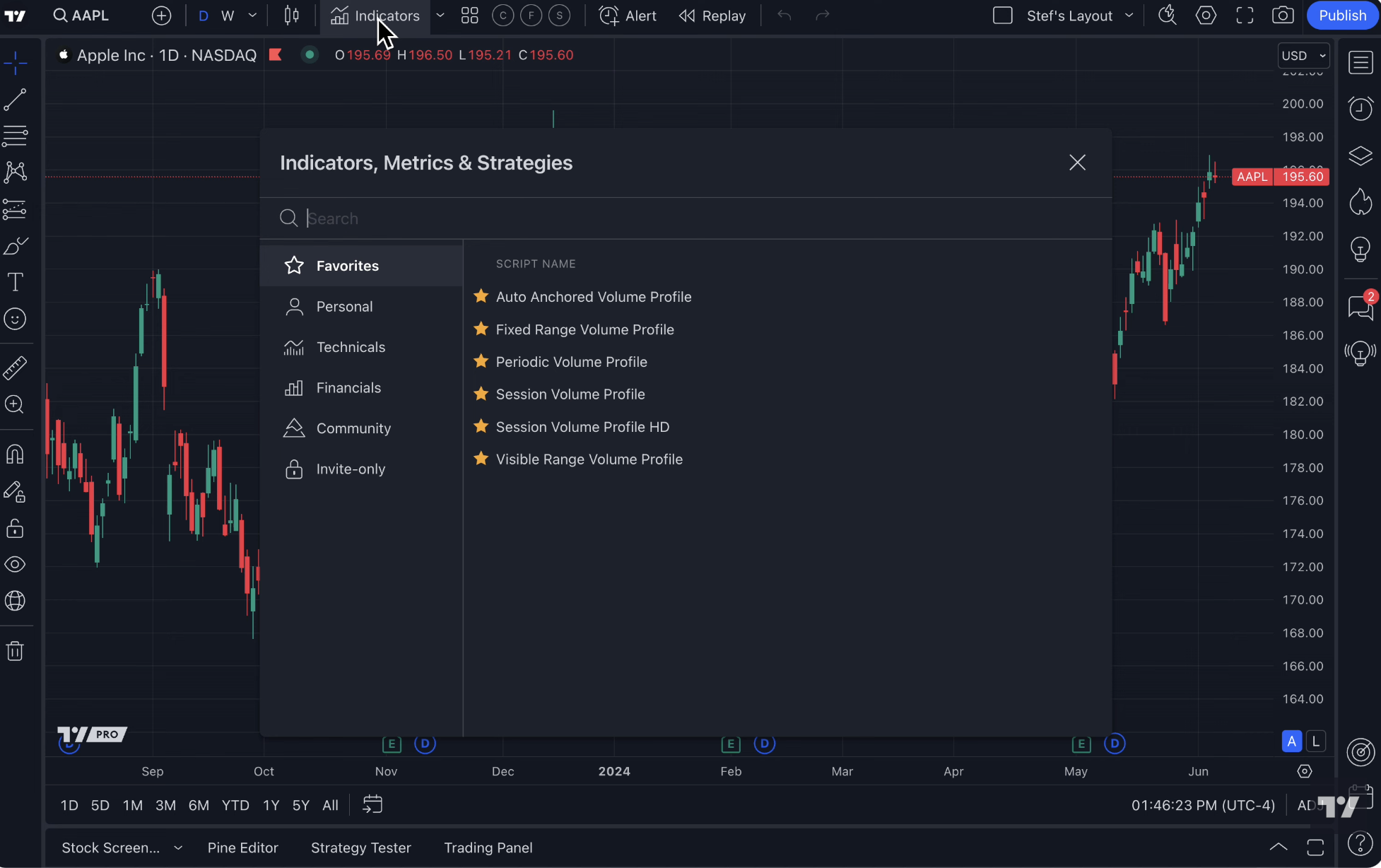
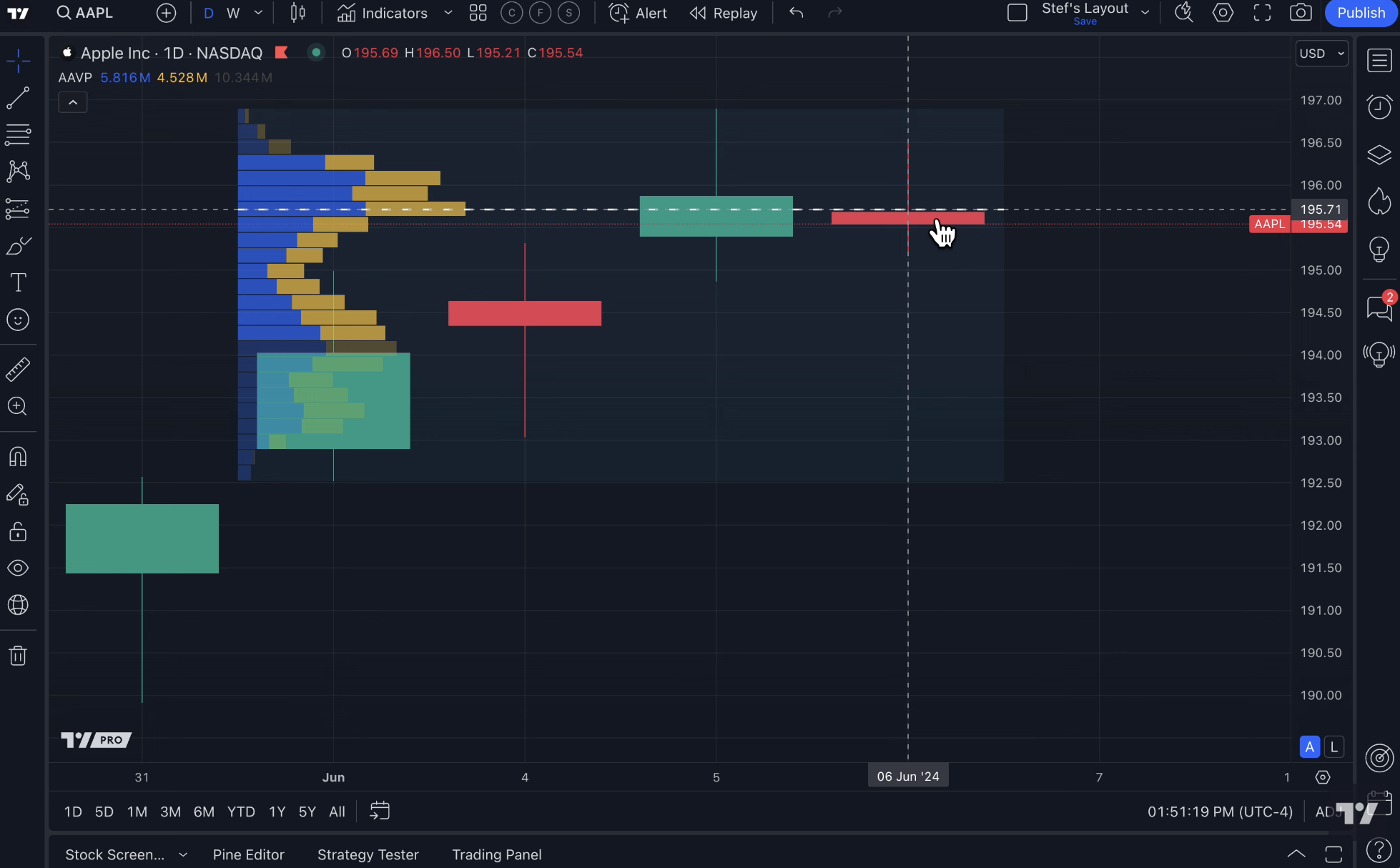
  1. Volume Profile Fixed Range (Pro feature) – Identify high-volume zones that price reacts to.

  2. Bar Replay (Pro feature) – Practice trades on historical candles.

  3. Multiple EMA and VWAP Overlays (Pro/Pro+ feature) – Helps visualize trend and support/resistance.

Free indicators like simple moving averages exist, but these premium tools save time and improve decision-making.

Step 4: Set Up Alerts

One of the biggest advantages of upgrading is alert functionality.
You can create alerts for:

  • Indicator conditions

  • Price hitting specific zones

  • Crosses on trendlines or EMAs

Instead of staring at charts all day, TradingView notifies you when a potential trade is actionable.
This is where you start to see the value of paid plans.

Step 5: Organize Watchlists & Notes

Beginner traders often track too many symbols or forget why a stock or crypto is on their radar.

  • Watchlists: Separate assets by sector, volatility, or strategy.

  • Notes: Add short reminders like “breakout resistance” or “volume spike yesterday.”

This setup keeps your trading systematic instead of reactive.

Step 6: Practice With Bar Replay

Before risking real money, practice on historical candles using Bar Replay.
It teaches timing, entry, and exit strategy — without wasting capital.

This tool is only available on paid plans and is a huge differentiator for serious traders.

Step 7: Save and Duplicate Layouts

Once your setup is complete:

  • Save your layout as “Default”

  • Duplicate it for variations (e.g., breakout trading, trend following)

Paid plans allow unlimited layouts, so you can experiment without overwriting your main setup.

Why This Blueprint Works

By focusing on paid features that directly impact your trading results:

  • You spend less time guessing

  • You catch more opportunities

  • You build a repeatable routine

All without cluttering your charts with tools you don’t need.

If you want to skip the free limitations and get started with this setup today:

Try TradingView Pro

TradingView vs Everything Else: The Only Honest Comparison Traders Need in 2026

If you’ve ever shopped for a trading platform, you know the overwhelm.
Every platform promises “better charts,” “faster execution,” “pro tools,” and “everything you need.”
But when it comes down to actually trading, which platform helps you make real decisions, and which just adds clutter?

I’ve tried a bunch of them. Thinkorswim, NinjaTrader, TrendSpider, even broker-native charting tools. TradingView stands out — but not because it’s flashy.
It’s because it combines simplicity, flexibility, and power in a way that actually helps you trade, instead of confusing you.

If you want to explore TradingView for yourself, here’s the link I used to get started:

Try TradingView Pro

1. TradingView vs Thinkorswim

Thinkorswim is powerful, but it’s heavy.
Menus everywhere, too many indicators by default, confusing workflows.

TradingView is lighter, cloud-based, and accessible anywhere.

  • Charts load instantly

  • Alerts are straightforward

  • Templates and layouts sync automatically across devices

When TradingView wins: usability, speed, accessibility.
When Thinkorswim wins: deep broker integration and advanced option analysis.

2. TradingView vs NinjaTrader

NinjaTrader is excellent for futures traders who want advanced order flow and automated strategies.
But it has a steep learning curve, requires downloads, and can feel intimidating for beginners.

TradingView keeps the interface clean but still lets you:

  • Use Pine Script for custom indicators

  • Set complex alerts

  • Build multi-timeframe dashboards

Bottom line: NinjaTrader is niche-powerful. TradingView is flexible for nearly every type of trader.

3. TradingView vs TrendSpider

TrendSpider markets itself as a “smart charts” platform, with automatic trendlines, alerts, and backtesting.

It’s clever — but some features feel automated to the point of removing trader judgment.
TradingView offers similar tools but keeps you in the driver’s seat, letting you customize everything while still saving time with alerts, drawing templates, and multi-timeframe layouts.

4. TradingView vs Broker-Native Charts

Every broker has their own charting system.
Some are okay. Some are painfully basic.

TradingView provides:

  • A huge indicator library

  • Custom scripts via Pine

  • Backtesting

  • Cross-asset charts (stocks, crypto, futures, forex)

All in one cloud-based interface. Your charts don’t disappear if you switch brokers.

Why TradingView Stands Out in 2026

Here’s the honest truth:

  • If you’re just starting, it’s easy to learn.

  • If you’re advanced, it doesn’t limit you.

  • Alerts, templates, layouts, multi-timeframe tools — all work across devices.

Other platforms may excel at one thing — options, automated strategies, order flow — but few combine flexibility, simplicity, and power like TradingView.

The One Caveat

No platform is perfect. If you’re a high-frequency trader or need direct broker execution, you might still need NinjaTrader or Thinkorswim.
But for nearly everyone else, TradingView covers everything you actually need to trade smarter and more efficiently.

Want to Try TradingView Yourself?

You can explore the same setup I use and see why it’s my go-to platform:

Try TradingView Pro

10 TradingView Tools That Actually Make You a Better Trader (Without Overcomplicating Your Charts)

Most articles about TradingView list the same handful of indicators everyone already knows.
You’ve seen them a thousand times: RSI, MACD, Bollinger Bands… rinse, repeat.

This isn’t that list.

These are the tools inside TradingView that quietly make you more accurate, more organized, and less stressed while trading.
The tools that real traders rely on once the novelty of fancy indicators wears off.

If you want to try these tools out, you can use the same link I used when I first signed up:

Get TradingView Pro

Let’s jump in.

1. Bar Replay (The Best Practice Tool Nobody Uses Enough)

Bar Replay lets you “scroll back in time” and trade a past market candle-by-candle.
Most new traders never use it.
Experienced traders use it religiously.

Why it works:
You learn how price actually develops instead of cherry-picking perfect hindsight setups.

Even five minutes of replay a day can sharpen your timing dramatically.

2. Alerts on Indicators (Not Just Price)

Most platforms let you set alerts at a price level.
TradingView allows alerts when indicators hit your conditions.

For example:

  • EMA crossovers

  • RSI hitting a threshold

  • MACD turning positive

  • Volume spikes

It’s like having a second pair of eyes watching the chart while you live your life.

3. Fixed-Range Volume Profile

This is one of my favorite tools — and one of the most overlooked.

Drop it on any structure and instantly see:

  • Where the heaviest trading took place

  • Where price is likely to stall

  • Where liquidity sits waiting

If you’re trying to avoid random entries, this tool alone will help tighten your decisions.

4. Multi-Timeframe Watchlists

You can create watchlists that show:

  • The current timeframe trend

  • If price is above/below a key level

  • Whether volatility is rising

  • If your setup conditions are met

It feels like having a dashboard for the entire market.

5. Drawing Templates

Ever redraw support/resistance the same way every day?
Or recreate your Fibonacci settings again and again?

Set up templates once and apply them with a click.
You’ll be shocked how much time this saves.

6. Chart Layout Syncing

If you trade multiple tickers or markets, you can sync drawing tools across all timeframes.
Draw something on the daily → it shows on the 15-minute → and the 1-minute.

Everything stays organized without extra work.

7. Heatmaps (Crypto, Stocks, Forex)

Instead of scanning endless tickers, glance at a heatmap and instantly see what’s strong, weak, moving, or cooling down.

This is incredibly useful for:

  • Finding momentum trades

  • Identifying rotation

  • Spotting red flags early

8. Compare Tool (Overlay Charts)

TradingView lets you overlay charts on top of each other.

Examples:

  • ES vs NQ

  • BTC vs ETH

  • Your stock vs its sector ETF

Correlation tells a story.
TradingView makes that story easy to read.

9. Alerts on Drawing Objects

Few people know this exists.

You can set alerts on things like:

  • Trendlines

  • Channels

  • Zones

  • Diagonal support

  • Volume Profile levels

The moment price touches your line, you get notified.

No babysitting.

10. Watchlist Notes (Small but Powerful)

I treat watchlist notes like a trading journal.
Quick notes such as:

  • “Support at 4175”

  • “Big earnings next week”

  • “Volume spike yesterday”

It keeps your mind clear and your prep consistent.

If You Want to Try These Yourself…

I use these tools every day because they make trading cleaner and more efficient without adding complexity.
If you want to test them out, here’s the same link I used to get started:

Unlock TradingView Pro Features

How I Use TradingView to Plan Every Trade: A Practical, Real-World Walkthrough

Most trading articles talk about tools, indicators, and features like they exist in a vacuum. But TradingView only becomes valuable when you use it inside a routine - something you can repeat day after day without thinking.

This is the routine I personally follow. It’s simple, it’s clean, and it keeps me from taking trades just because I feel like I “should be trading.”

If you want to follow along with the exact layout I’m using, this is the link I started with:

Try TradingView Pro

Step 1: My Morning Chart Prep (5–7 minutes)

Before I even look for a setup, I take a few minutes to see what the market actually did.
Not what I think it’s going to do.
Not what Twitter is screaming.

Just price.

Here’s what I check first:

• Yesterday’s high, low, and close

These three levels tell me where most traders are anchored emotionally.

• Pre-market structure (for futures and stocks)

A quick scan of the overnight session shows whether the market is trending, ranging, or coiled up.

• A higher timeframe bias (15 min, 1 hr, daily)

I want a simple answer to a simple question:
“Is the market trending or chopping?”

I mark these levels with horizontal lines.
Nothing fancy.
TradingView makes it easy to color-code them so I don’t have to guess which is which.

Step 2: Chart Layout I Use Every Day

My setup is boring—in a good way.
The more predictable my workspace is, the calmer I trade.

My screen usually has:

• Main chart: 5-minute

This is where I see the structure develop.

• Secondary chart: 1-minute

Only for entries.
I don’t use the 1-minute to predict anything. I just fine-tune risk.

• Third chart: 1-hour or daily

This keeps the bigger picture in view so I don't get tunnel vision.

TradingView’s layout tool lets me lock this in so it loads exactly the same every morning.
It sounds small, but removing friction helps you avoid emotional trades.

Step 3: Indicators I Actually Rely On

I’m minimalistic.
If a trader has 12 indicators on their screen, they’re not trading—they’re decorating.

Here are the only tools that stay on my chart:

1. Volume Profile (session or fixed range)

This is the backbone of my prep.
It shows where price actually traded instead of where it simply passed through.

2. 20 and 50 EMA

Not because they tell me what to do, but because they give me structure:

  • Trend continuation setups

  • Pullbacks

  • Mean reversion moments

3. VWAP (for intraday trading)

This is the “fair value” anchor institutions lean on.

I’m not married to indicators, but these three help keep me disciplined.

Step 4: How I Find Trade Setups (The Actual Process)

Here's the part everyone asks for:
“Okay, but how do you actually find trades?”

My routine looks like this:

1. Identify the dominant trend

If the 5-minute structure is climbing—higher highs, higher lows—I only look for longs.
Simple rule, but it removed half my losses.

2. Wait for price to return to a high-volume area

This is where real trades happen.
Low-volume “air pockets” often get rejected.

3. Look for a reaction

I don’t blindly buy or sell levels.
I wait for the market to respond—either a strong candle, a wick rejection, or a shift in the 1-minute structure.

4. Enter using the 1-minute chart

This is where TradingView shines for me.
Clean, fast, no clutter.

I size the position so the stop fits comfortably under the structure—not under the “line.”

Step 5: Alerts (The Part That Saves Me Hours)

People underestimate how powerful TradingView alerts are.
This is where the value really kicks in.

I set alerts for:

  • A retest of my levels

  • Price touching a high-volume node

  • Breakout confirmation

  • EMA pullbacks

Instead of babysitting charts all day, I let TradingView notify me when something is actually happening.
This alone made my trading less stressful and more consistent.

(Set alerts → close platform → get notified when the market comes to you.)

Step 6: Reviewing the Trade (10–20 seconds)

My end-of-day routine is short but important:

  • Screenshot the setup

  • Mark the entry / exit

  • Add one sentence about what I could’ve done better

TradingView’s built-in screenshot tool makes this easy.

That’s it.
No long journal entries I’ll never read again.

Why This Routine Works

It cuts out noise.
It keeps you from chasing random moves.
And it turns TradingView into a daily workflow instead of a confusing bundle of features.

If you want to build a similar setup, you can start the same way I did:

Upgrade to TradingView Pro

Why You Need to Sign Up for TradingView: The Ultimate Platform for Traders & Investors

Whether you're a seasoned trader or just beginning your investing journey, the one thing you need to succeed in today’s markets are the right tools. Enter TradingView—the powerful charting platform that’s taking the trading world by storm. If you haven’t yet discovered what makes TradingView a game-changer, it’s time to pay attention.

With its sleek interface, a robust set of features, and a community of millions of traders sharing ideas in real-time, TradingView is more than just a charting tool—it’s your personal trading hub.

In this article, we’ll explore exactly why TradingView is the platform you’ve been waiting for and why you should sign up today. Ready to unlock your trading potential? Let’s dive in!

JOIN TODAY!

1. Stunning, Intuitive Charts That You’ll Actually Enjoy Using

At the heart of every trader’s toolkit is the chart. But let’s be honest—charts can often be overwhelming, filled with confusing indicators and complex layouts. TradingView is changing all of that.

From the moment you sign up, you’ll experience a beautiful, intuitive interface that makes charting feel more like an art than a chore. TradingView’s charts are highly customizable, allowing you to choose from a wide range of timeframes, indicators, and drawing tools that suit your trading style. Whether you're a scalper looking for quick, precise movements or a swing trader tracking longer-term trends, TradingView adapts to your needs.

  • Multiple Chart Views: View multiple charts at once for comparative analysis or keep track of several instruments simultaneously.

  • Advanced Charting Tools: Draw trendlines, use Fibonacci retracements, and track technical indicators with ease—all at the click of a button.

  • Real-Time Data: Get live market data from major exchanges across the globe, so you never miss a beat.

If you’ve ever felt like your charting tool wasn’t up to the task, TradingView will make you rethink what’s possible.

2. TradingView’s Social Community: Ideas, Insights, and Inspiration

Imagine having access to millions of traders from around the world, all sharing their analysis, strategies, and insights on real-time charts. That’s the magic of TradingView’s social network.

  • Follow Top Traders: Discover and follow top traders with track records of success. See their trading setups, analyses, and predictions for the market, and learn from the best.

  • Share Your Own Ideas: Whether you're just starting out or already a pro, you can publish your trading ideas to the community. Share your strategies, get feedback, and even have discussions with other traders.

  • Real-Time Alerts and Ideas: TradingView alerts you whenever new trading ideas, news, or patterns emerge from the community, so you never miss a potential opportunity.

This collaborative approach to trading fosters growth and learning. As a new trader, you’ll gain valuable insights from more experienced traders, and as a seasoned pro, you’ll get a chance to teach, mentor, and connect with others.

3. Seamless Integration with Brokers for Fast Execution

Having the right analysis tool is only half the battle. The other half is executing your trades quickly and efficiently. TradingView seamlessly integrates with a growing list of brokers, allowing you to place trades directly from your charts.

  • Direct Trade Execution: With supported brokers, you can buy and sell without ever leaving the TradingView platform. This reduces friction and ensures that you’re always positioned to act on the best opportunities in real-time.

  • Paper Trading: If you're new to trading or want to test out a new strategy, TradingView’s paper trading featurelets you simulate real trades without risking actual capital.

This integration makes TradingView not just a tool for analysis but a fully-fledged trading platform for all your market activities.

4. Access to Multiple Markets and Assets

Whether you trade stocks, forex, cryptocurrencies, or commodities, TradingView has you covered. With access to over 50,000+ instruments across stocks, futures, forex, crypto, and indices, you can track and analyze virtually any asset that interests you.

  • Crypto Traders: You can monitor Bitcoin, Ethereum, and other altcoins with real-time data from major exchanges, plus the tools to analyze price action, volume trends, and more.

  • Forex & Stocks: Dive deep into foreign exchange and equities markets with a wealth of charting options and technical analysis tools.

  • Global Market Access: TradingView covers stocks from major exchanges like the NYSE, NASDAQ, and global markets like London, Tokyo, and others, meaning you’ll never miss an opportunity—no matter where in the world it arises.

No matter where your interests lie, TradingView gives you the versatility to trade across all major asset classes, from a single platform.

5. Real-Time News and Economic Calendar at Your Fingertips

In today’s fast-paced market, staying informed is critical to making timely decisions. That’s why TradingView offers integrated news and economic events, right on your dashboard.

  • Global News: Stay updated with breaking news from leading financial sources like Reuters, Bloomberg, and CNBC. Whether it’s economic data releases, company earnings, or geopolitical events, you’ll be in the know in real-time.

  • Economic Calendar: Keep track of economic reports, central bank announcements, and other key events that can move the market.

Having all this crucial information available in one place allows you to stay ahead of the curve and make more informed decisions.

6. Customizable Alerts: Never Miss a Trade Again

Setting alerts is crucial to trading success. TradingView takes alerting to the next level with incredibly customizable options that notify you about price movements, indicator conditions, or chart pattern formations.

  • Price Alerts: Set an alert to notify you when a stock, crypto, or any asset reaches your desired price.

  • Indicator Alerts: Want to know when an RSI crosses above 70 or a moving average turns bullish? TradingViewcan alert you to these specific conditions.

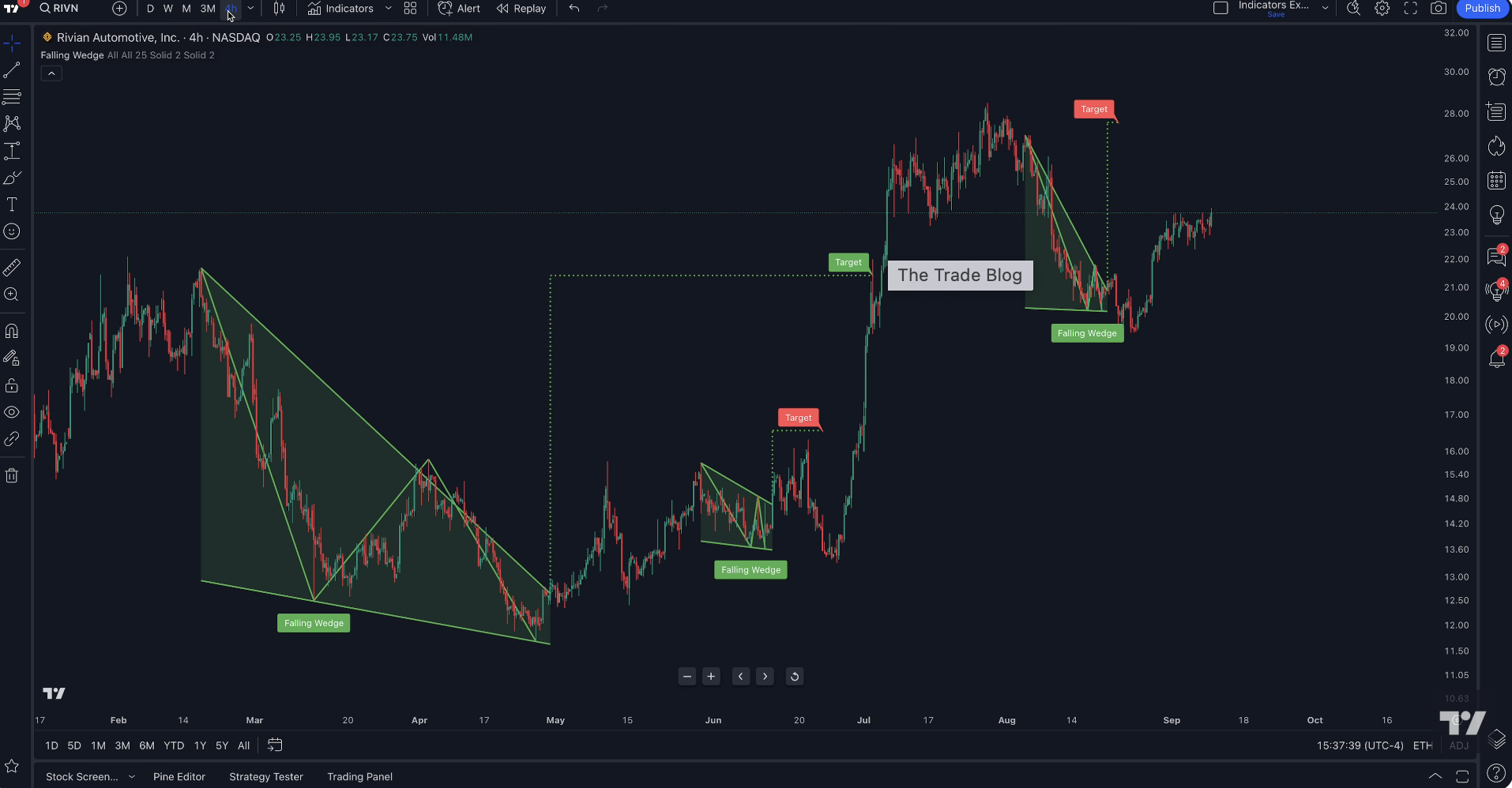
  • Chart Pattern Alerts: Track complex patterns like head and shoulders, triangles, or flags with automatic alerts, so you don’t miss a setup.

With alerts based on your own criteria, TradingView ensures that you're always on top of the market, no matter where you are.

7. TradingView on Any Device, Anywhere

Whether you’re at home, at the office, or on the go, TradingView has you covered. With a web-based platform and mobile apps for both iOS and Android, you can access your charts and trade ideas anytime, anywhere.

This cross-platform capability means you can check your markets, update your alerts, or even place trades no matter where you are in the world. With TradingView, your trading doesn’t have to stop when you leave your desk.

Why Wait? Join TradingView Today!

CLICK HERE TO SIGN UP

Ready to elevate your trading game? TradingView is your one-stop solution for all things trading, offering powerful tools, a dynamic social community, real-time market data, and seamless broker integration—all in one place.

Whether you’re looking to improve your charting, collaborate with other traders, automate your trades, or simply stay ahead of the market, TradingView is the platform that will help you do it all.

Sign up today and start exploring the powerful features that have made TradingView the go-to platform for traders and investors worldwide. Don’t let another opportunity pass you by—join the millions of traders who are already using TradingView to take their trading to the next level!